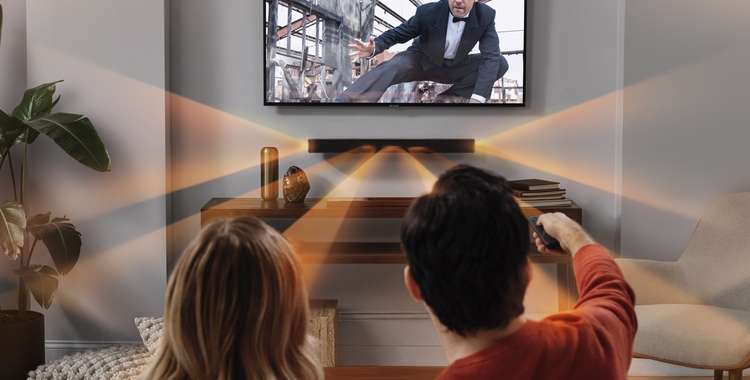
A soundbar is a great way to enhance your TV’s audio quality without the need for a full surround sound system. Whether you’re looking for clearer dialogue, deeper bass, or a more immersive experience, connecting a soundbar to your TV is easy. In this guide, we’ll walk you through the different methods step by step.
1. Choose the Right Connection Method
There are several ways to connect your soundbar to your TV. The best option depends on your TV and soundbar’s available ports.
a) HDMI ARC (Best for High-Quality Sound)
If your TV and soundbar have an HDMI ARC (Audio Return Channel) port, this is the best way to connect them. It allows high-quality audio transmission and lets you control the soundbar using the TV remote.
Steps:
- Turn off both your TV and soundbar.
- Connect an HDMI cable from the HDMI ARC port on the TV to the HDMI ARC input on the soundbar.
- Turn on both devices and set the TV audio output to HDMI ARC in the settings.
- Enable CEC (Consumer Electronics Control) on your TV to use the TV remote for volume control.
b) Optical Cable (Great Alternative for High-Quality Audio)
If your TV doesn’t support HDMI ARC, an optical (TOSLINK) cable is the next best choice. This method supports high-quality digital audio but may not allow volume control via the TV remote.
Steps:
- Plug one end of the optical cable into the TV’s Optical Out (Digital Audio Out) port.
- Connect the other end to the Optical In port on the soundbar.
- Turn on both devices and change the TV’s audio output to Optical in the settings.
c) AUX (3.5mm) or RCA Cables (For Older TVs)
If your TV doesn’t have HDMI or optical ports, you can use a 3.5mm AUX cable or RCA (red and white) cables. However, this method provides lower audio quality and may not support surround sound.
Steps:
- Connect the AUX or RCA cable from the TV’s headphone jack (AUX Out) or RCA Out to the soundbar’s AUX or RCA In.
- Select the appropriate input source on the soundbar.
d) Bluetooth (Wireless Option, But May Have Lag)
Some soundbars and TVs support Bluetooth, allowing a wireless connection. However, Bluetooth may have audio delay and isn’t ideal for perfect lip-sync.
Steps:
- Enable Bluetooth on both the TV and soundbar.
- Pair the soundbar with the TV by selecting it in the TV’s Bluetooth settings.
- Set the TV’s audio output to Bluetooth.
2. Adjust Audio Settings for Best Performance
After connecting your soundbar, tweak your TV’s audio settings for the best experience:
- Disable TV speakers (to avoid echo).
- Set audio format to Dolby Digital or PCM, depending on the supported formats.
- If using HDMI ARC, enable CEC for better control.
3. Test and Enjoy Your Soundbar
Play a movie or music to test the audio. If the sound doesn’t work:
- Double-check cable connections.
- Make sure the correct audio source is selected on the soundbar.
- Restart both devices if needed.
Conclusion
Connecting a soundbar to your TV is quick and easy with the right method. For the best sound quality and convenience, HDMI ARC or optical cable are recommended. Now, sit back and enjoy an upgraded audio experience!
How to Connect a Soundbar to a TV?
1. Choose the Right Connection Method
2. Adjust Audio Settings for Best Performance
3. Test and Enjoy Your Soundbar